Record exactly where the color changes
You download an AI illustration, prepare it for publication, and its green object turns olive on the website. To investigate, keep three separate files: the original generation, the editor export, and the image the browser actually receives. Use the page inspector to identify the loaded resource.
Compare adjacent stages on one screen, using the same scale and background. During the check, keep display brightness fixed and disable modes that automatically adjust the screen’s tint. Record the application and browser where you noticed the difference. This makes the observation reproducible.
Create a short log containing the file version, dimensions, color information, viewing location, and observed difference. For an image from SeaGenera’s Playground or API, start with the downloaded result. Keep a preview screenshot as supplementary evidence: it cannot replace inspection of the actual file and its properties.
Check how the file describes its colors
Red, green, and blue channel values need to be considered alongside their color space. MDN explains that different spaces define different coordinates and color ranges. Identical channel values in two files therefore do not establish that they should look identical.
Inspect the image information in an editor that supports color management. Record the profile or other color identification you find. The W3C PNG specification provides, for example, an embedded ICC profile and a separate sRGB indicator. Absence of an ICC profile alone does not establish that all color information is missing.
W3C CSS Color 4 requires valid image color identification to be respected and untagged images to be treated as sRGB. This browser rule does not establish the source data’s origin. If your editor reports only an assumed space, record it as an assumption and keep that uncertainty visible.
Distinguish conversion from profile assignment
Conversion between spaces recalculates the color representation. Simply assigning another profile changes how existing values are interpreted. Choosing whichever profile looks nicest cannot establish that the original color has been restored. First determine what is known about the source and which operations have already been performed.
For ordinary web publication, one possible working policy is to prepare a separate sRGB copy while retaining the original. When the source space is known, convert to the chosen destination and include corresponding color identification in the export. Reopen the resulting file and inspect both its properties and appearance.
If color information has been lost, preserve that uncertainty. Look for an earlier export or saved editor document. Trying a profile assignment on a copy can serve as a diagnostic hypothesis, but label the result as an assumption. Resemblance to a remembered shade does not validate the profile.
Separate the delivered file from page styling
Open the image received from the website separately in the same browser. Use the inspector to confirm that it is the resource used by the card: a website may deliver different versions for different screen sizes. Compare it with the export in one editor, then return to the page.
If the downloaded website file already differs from the export, investigate upload processing and image variant preparation. Check one operation at a time: resizing, format conversion, or settings that retain color information. Changing several transformations together prevents a confident link between a fix and a particular cause.
If the standalone file looks as expected but the card does not, inspect styling on the image and its containers. MDN documents that CSS filters can alter brightness, saturation, and hue. On a test page, disable effects individually and record each result, retaining the original settings for restoration.
Example: a green tray turns olive
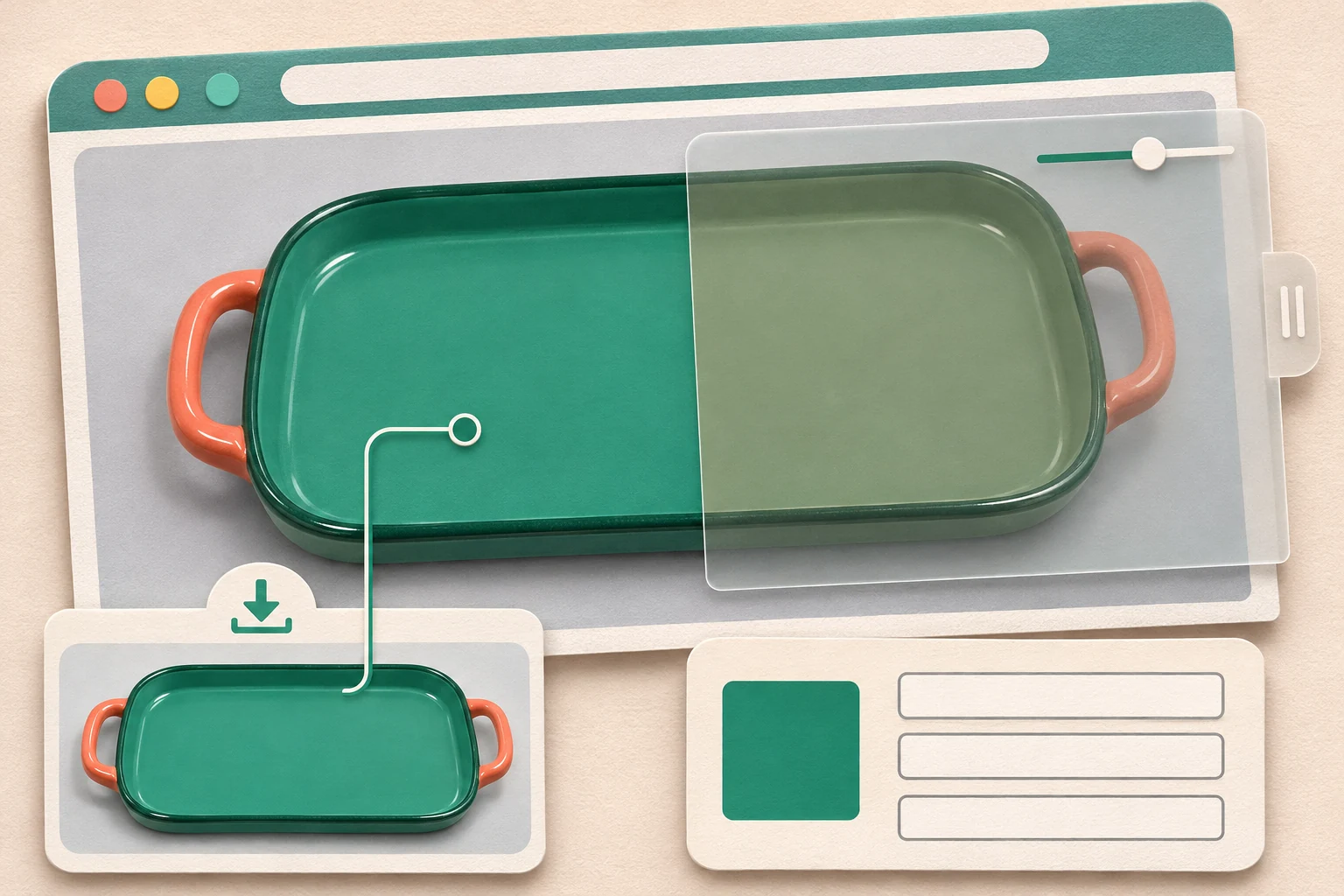
Consider a fictional example: an AI illustration of an enamel tray with coral handles against a light gray background. The original measures 2400 × 1600 pixels; the publication copy measures 1200 × 800. The check must preserve the copy’s approved appearance in a catalog card, including the handles and bright highlights.
In this example, the export and downloaded website resource look alike in the editor. The resource also looks correct when opened separately in the browser. The olive tint appears only inside the card. Disabling the container’s saturation filter removes the difference; enabling it restores it. This supports investigating that container’s styling.
After correcting it, repeat the entire sequence and inspect the card normally and on hover, if applicable. Check the tray, handles, neutral background, and highlights. Accept the result when the unwanted shift no longer reproduces under the recorded conditions. These observations belong to an illustrative example, not an actual SeaGenera test.
Check the limits of your conclusion
Color spaces have limited gamuts. Display P3, for example, can represent some more saturated colors than sRGB. Moving to sRGB may therefore require changes to certain original shades. Assess this separately from accidental loss of color identification or an unexpected page effect.
Checking one screen helps locate a change but cannot guarantee identical appearance everywhere. Repeat the viewing check on another available device and record the conditions. If product color accuracy is critical, you need an agreed reference and a controlled evaluation procedure. An AI illustration alone cannot establish a product’s real color.
Keep the original file, publication copy, profile information, inspected resource address, identified stage of change, and repeat-check conditions in the final record. State unresolved questions explicitly. This package lets a developer reproduce the problem and verify the next correction without generating another image.