Establish the image’s purpose
Alt text is a text alternative for an image on a web page. It helps convey the image’s information or purpose to people who cannot see it. AI can draft it when given the context. This method produces approved text for a specific publication location and a record of how it was checked.
First decide what the reader should gain from the image: understand an object’s construction, perform an action, or experience decoration. The W3C decision tree connects the choice of text alternative to the image’s purpose and surrounding content. The same photograph can require different treatment on different pages.
Write the intended benefit in one sentence. For example: “Show how the bag’s interior is divided.” This gives the editor a review criterion. A detailed inventory of colors and objects can miss that benefit. All examples below are fictional and illustrate the method.
Provide the image together with its context
Prepare the final image, page heading, nearby caption, and a description of what happens when the image is clicked. Separately identify information already available in the surrounding text. In SeaGenera, check the selected model’s card for image input support: the ability to analyze a picture depends on the model.
Use the crop visitors will see. If the original photograph shows a handle and an internal pocket, but the published crop retains only the pocket, the description should reflect that crop. If the model accepts only text, write a verified description yourself and ask AI to edit it.
Request a publication draft and separate questions for the editor. Those questions can reveal unclear details before approval. For example, the bag’s material might be unknown even when its texture is visible. Ask the model to leave such properties unspecified until the editor confirms them using reliable information.
Illustrative example: a photograph of the bag’s interior
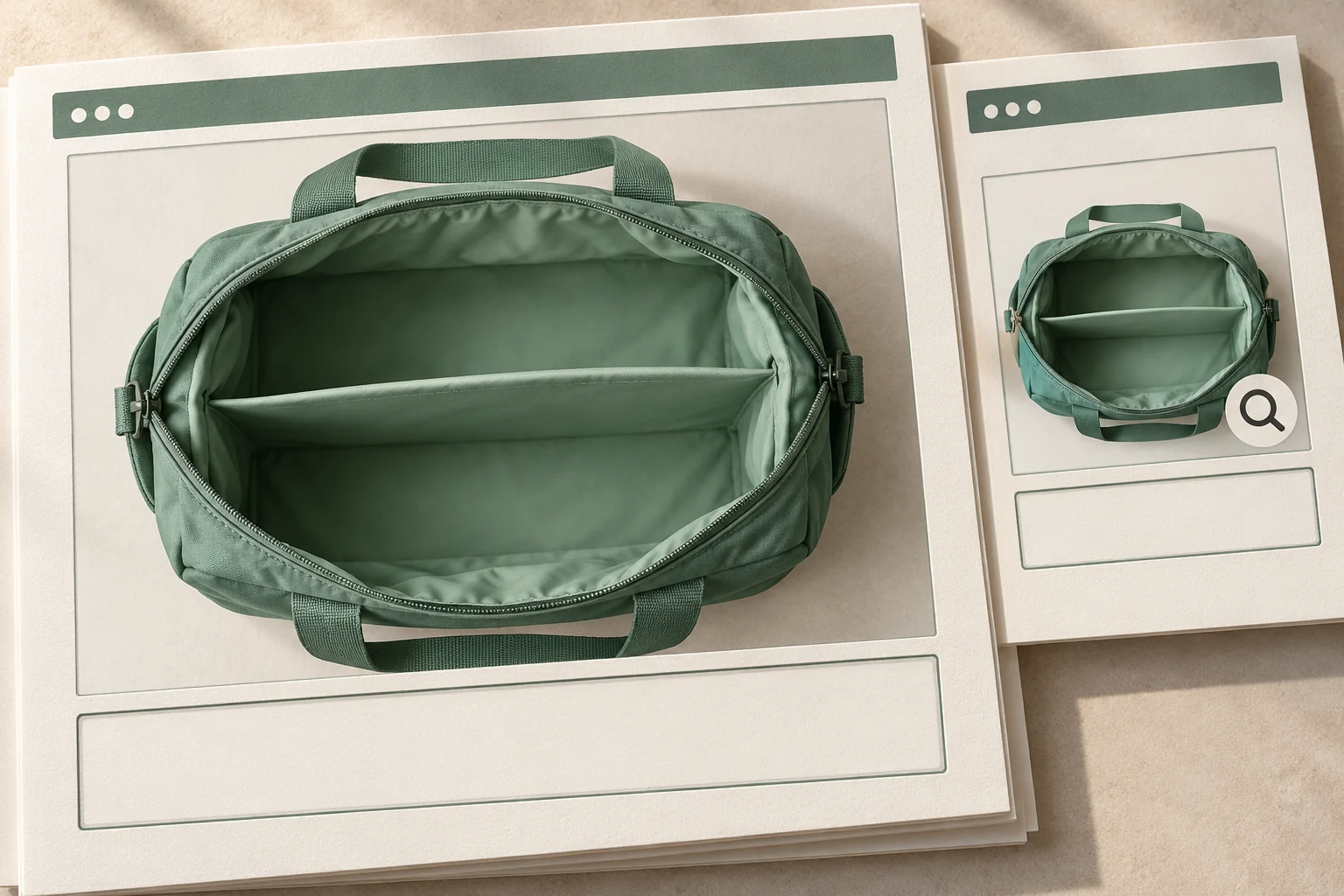
Imagine a photograph of an open green bag: one divider separates its interior into two compartments. The page already has the heading “Green travel bag.” The photograph explains the product’s construction and is not a link. The essential information for this location is the presence of two compartments.
Example instruction: “Draft a brief text alternative for this product photograph. The nearby heading is ‘Green travel bag.’ Convey the interior layout. Use visible details, exclude promotional judgments and unsupported properties. Suggest one version and list uncertainties separately.” Supply the photograph together with this instruction.
A possible edited version is: “The bag’s interior has two compartments separated by a divider.” This is an illustrative wording. The editor must check the compartment count against the image. “Waterproof,” “durable,” and “ideal for travel” require separate evidence; the interior photograph alone does not establish those claims.
Adjust the treatment when the image’s role changes
Now imagine that the same photograph is the only content of a button that opens an enlarged image. W3C’s Functional Images guidance says the text alternative should convey the element’s action. An example for this button is: “Enlarge the photo of the bag’s interior.” Verify that action in the working interface.
Another example is a background photograph of the bag used to decorate a page without adding information. The W3C decision tree specifies an empty text alternative for decorative images. Record that decision explicitly: an accidentally omitted field and an intentionally empty alternative call for different editorial judgments.
For a complex diagram, prepare a short identification and a detailed explanation of its essential information, following W3C’s Complex Images guidance. For example, a diagram showing items arranged in compartments might need a separate contents list. Ask AI to draft both texts, then check every item and its location.
Check the facts and the page’s reading experience
First compare every statement with the image and confirmed context. For the bag example, check the compartment count, the divider’s presence, and the absence of invented properties. Record a specific correction. A comment such as “remove the waterproof claim” makes the next version straightforward to verify.
Next, run an editorial exercise: give a colleague the surrounding text and approved alternative without the photograph. Ask what new information the image contributes and whether the element’s purpose is clear. In our example, the expected answer is that the interior has two compartments. This exercise checks whether the meaning comes across.
After placement, listen to that part of the page using a screen reader, which announces the interface. Check that the approved text is available, the heading is not repeated unnecessarily, and the button announces an understandable action. Reach the button using the keyboard. Record the browser, screen reader, and problems found.
Keep a record and account for limitations
Google’s Safety and factuality guidance warns that generative models can produce factually incorrect answers and require manual evaluation. Confident wording therefore provides no evidence of accuracy. If an important detail cannot be distinguished, request a clearer source image or confirmation from the material’s owner.
Save the page address, image version, surrounding text, assigned role, approved alternative, and review notes. This forms a small publication record. Revisit it whenever the photograph, crop, caption, or button action changes: the previous wording may no longer match the content.
Checking one image covers a limited portion of the page. It does not establish the accessibility of navigation, forms, or the rest of the interface. For recurring templates, collect several different examples and involve screen reader users: their feedback can reveal difficulties that an editorial review may have missed.