What the portrait version must preserve
After cropping a landscape AI video, the main object may remain centered while the action loses its meaning. For example, viewers might see a scoop tilt without seeing where the balls land. Check both the scene’s visible content and the crop window’s movement throughout the clip.
In Watch to Edit: Video Retargeting using Gaze, the authors optimize a crop window’s path over time while preserving significant regions and smooth movement. The practical implication for our review is that one successful still frame does not establish that the entire portrait version works.
The editorial procedure below produces two deliverables: a required-visibility map and a decision about an acceptable crop path. You need a downloaded clip and a video editor with cropping controls. Keep the original separately so that every issue can be checked against the same version.
Create a required-visibility map
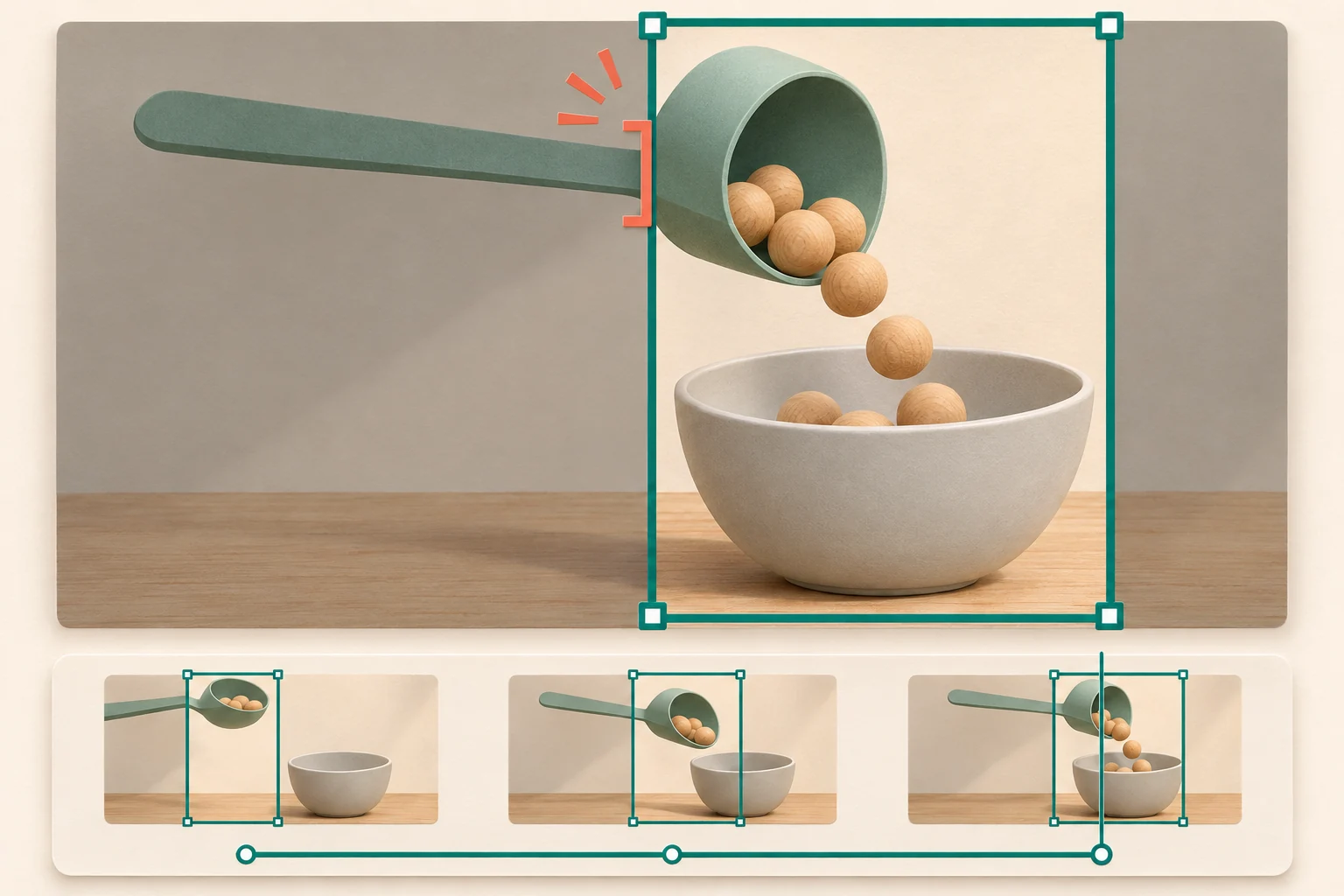
Illustrative example: an eight-second AI animation. A green scoop holding wooden balls rises on the left, moves toward a gray bowl on the right, and tilts above it. This is a fictional example for explaining the procedure, not the result of an actual generation or test.
For this example, assign events as follows: the scoop rises from zero to two seconds, moves right from two to four, pours the balls from four to five, and remains beside the bowl from five to eight. These markers describe events, so a real clip needs markers based on its actual movement.
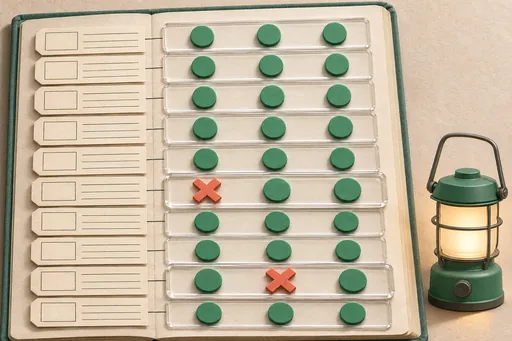
Set these requirements: the entire scoop must remain visible throughout; during pouring, the falling balls and the top of the bowl must also appear. Record each requirement’s start, end, and purpose. “Keep the main object” is too vague because it does not identify which neighboring details viewers need.
Check whether there is enough width
First establish whether cropping alone can meet the requirements. In this numerical example, the source measures 1920 by 1080 pixels. Keeping its full height while producing a 9:16 aspect ratio gives a crop width of 1080 × 9 / 16 = 607.5, or approximately 608 source pixels.
Suppose, for this example, that the combined horizontal span of the scoop, balls, and required bowl edge is 760 pixels during pouring. They cannot fit inside a window approximately 608 pixels wide. Moving a window of that size cannot show all the required regions simultaneously.
Measure the total span from the leftmost to the rightmost necessary point, including gaps between objects. Repeat this at several moments during the action. If even one required moment does not fit, choose a smaller image with padding, another publication format, or a source with a more compact scene.
Choose how the window behaves over time
Google’s archived MediaPipe AutoFlip documentation distinguishes between a stationary window and tracking activity. It also provides for padding when required regions are too widely separated. In this procedure, those alternatives become editorial choices that must be justified by the visibility requirements.
If one window position contains the action throughout the relevant segment, check a stationary crop first. Add window movement when following the subject requires it. Mark when tracking begins and ends: the window should not reverse direction without a reason while the subject continues moving consistently.
The source camera is stationary in our example. Pick a recognizable point on the table and follow it in the portrait version. Its displacement reveals crop movement. If the background jerks after the scoop stops, revisit the path settings. When the source camera moves, compare the same segment against the original.
Check the export against events
First watch only the finished portrait file at normal speed. Record whether the movement’s direction is clear, the pouring destination is visible, and tracking is distracting. Then open the source and compare matching moments. This helps reveal information that viewers of the portrait version never received.
Watch every required-visibility interval in full, and additionally step through fast events frame by frame. The segment from four to five seconds is particularly important in this example. Check its opening, the pouring itself, and its ending. Widely spaced still frames can miss a brief disappearance of the bowl’s edge.
In the review log, record the time, missing region, and effect on understanding. Example issue: the bowl’s edge moved outside the boundary during pouring, so the balls’ destination was invisible. Acceptance requires no such losses during the checked mandatory intervals and window movement that does not interfere with following the action.
Fix the cause and check again
When sufficient space exists, try changing the window’s position or when tracking starts. After smoothing the path, check visibility again: slower window movement could leave the scoop outside the crop. Fixing one jerk does not establish that neighboring seconds remain intact, so review the entire affected segment.
When space is insufficient, reducing the source image and adding padding can preserve more of the scene. Check the tradeoff at the intended screen size: the balls and bowl edge might become too small. Showing the scoop and bowl consecutively does not meet a requirement to see them simultaneously during pouring.
Cropping does not repair deformations, incorrect movement, or flicker in the original AI animation; those require separate checks. Keep the source filename, dimensions, mandatory intervals, chosen window behavior, and export issues in the acceptance record. A new crop or different scale requires another review of the finished file.