Define what must survive
An AI-generated CSV can look correct in a chat window and change when opened in Excel. A code loses leading zeros, a long identifier changes, or a note spills into another column. Check the transfer from the received text to working cells as a separate step.
W3C’s CSV primer explains that the format itself does not specify column data types. Digits do not necessarily mean a field is intended for calculations. Decide which values require character-for-character preservation and which may be converted for arithmetic.
Create an import record covering the application and version, delimiter, encoding, column types, reference values, and acceptance decision. Keep the original AI response separately from the working spreadsheet. If values differ, this helps establish whether the error existed before the transfer.
Prepare three reference records
Illustrative example: a workshop maintains a cutting mat register, and a text model transfers information from notes into CSV. Manually prepare three records to test the importer, using five fields: code, serial number, recorded date, quantity, and note. Testing this does not require a model call.
The first record contains code 00427, serial number 1234567890123456, recorded date 03/04/2026, quantity 2, and the note Основа, зелёная, meaning Base, green. Preserve the date as text because its calendar interpretation remains unresolved. These values provide specific references for comparison after loading.
Give the second record code 00428, quantity 1, and a note beginning with an equals sign. Give the third code 00429, quantity 3, and a two-line note: Верх целый followed by Низ поцарапан, meaning Top intact and Underside scratched. Leave other fields empty. Expect three records, five columns, and a quantity total of 6.
Check field boundaries before loading
First inspect the CSV as plain text. Separate the data from the model’s introduction and any explanation following the table. W3C describes enclosing fields containing commas or line breaks in double quotes. In this example, the comma within the note must remain inside one cell.
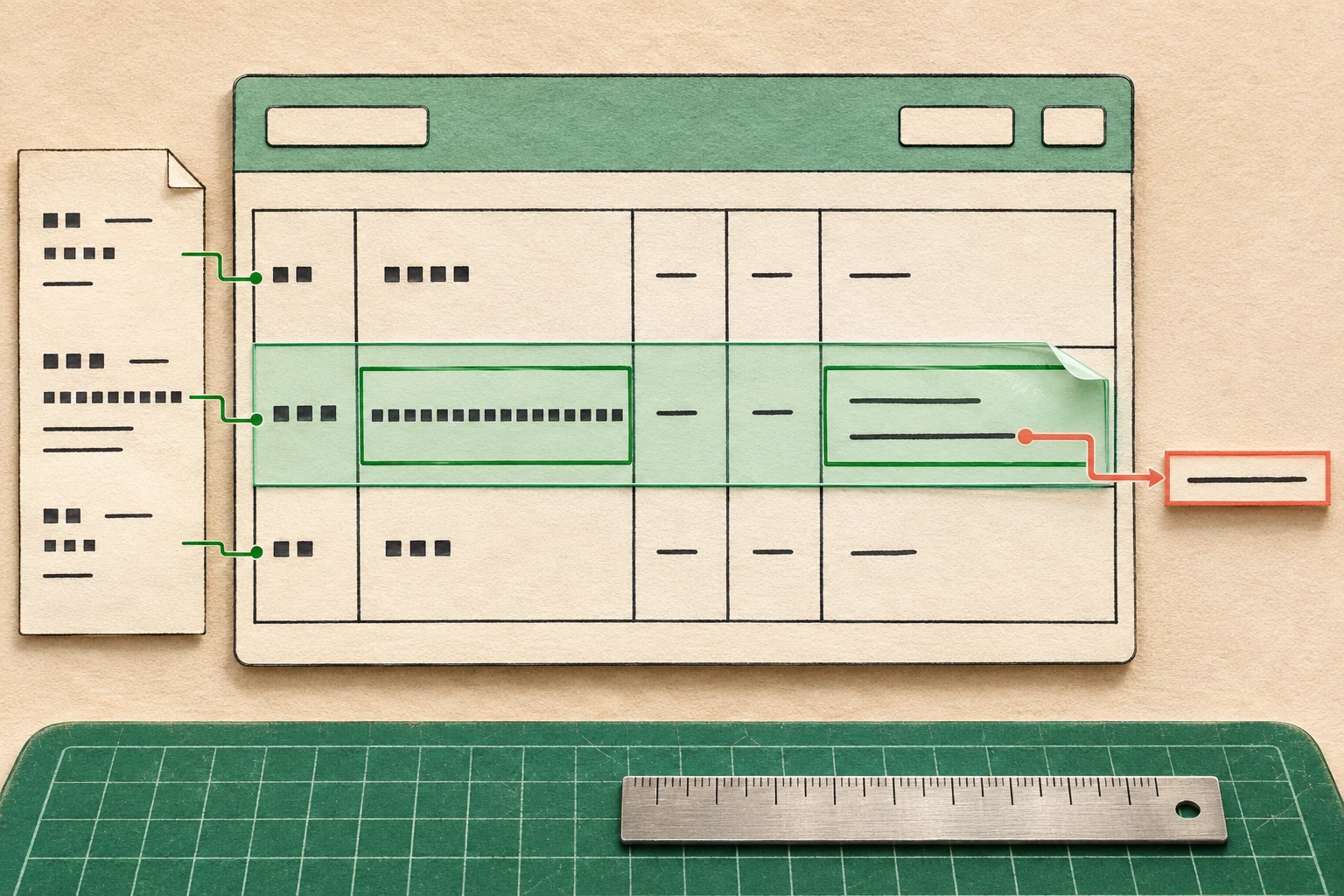
In Excel, use the Data section and From Text/CSV. Select the agreed delimiter and UTF-8 encoding. Microsoft’s connector documentation describes disabling automatic type detection so that all columns initially become text. Check whether your version offers this setting.
In the preview, locate all three codes and five columns. Confirm that Cyrillic displays correctly and the two-line note belongs to one record. If an extra row appears, check how quoted line breaks are handled. Avoid blindly deleting commas or line breaks: establish why the split occurred first.
Assign types before calculating
Microsoft warns that numeric conversion can remove leading zeros and that Excel numbers have fifteen significant digits of precision. Load codes and serial numbers as text in this example. Apply the same rule to the ambiguous date and all notes for now.
After loading, compare code 00427 and the complete sixteen-digit identifier with the source. Inspect the formula bar contents and the type assigned during import. Then convert only the quantity column to numbers and check the total of 6. This separately tests identifier preservation and quantities’ suitability for calculations.
If an identifier has already changed, import again from the preserved source text using the correct types. Applying text formatting afterward does not restore lost digits. Do not append zeros based on appearance: recovering a value requires the source, otherwise the repair could create a different identifier.
Confirm that notes remain data
Pay particular attention to the second record’s note. OWASP describes CSV injection: cell contents beginning with an equals sign may be interpreted as a formula through some opening methods. Ordinary CSV quotes delimit a field; they cannot be treated as universal protection against evaluation.
For this register, the acceptance rule is straightforward: every note must remain literal text. In the test copy, verify that the second note retains its original contents without becoming a formula. If your loading method cannot ensure this, stop the transfer and choose another method that explicitly preserves text.
Adding an apostrophe, tab, or another protective character changes the data representation and requires separate agreement. OWASP notes that no CSV sanitization method works universally across applications and warns about saving again. Test any such transformation along the complete route to the recipient.
Repeat the check after saving
If the spreadsheet will be passed on as CSV again, export a test copy and load it using the recipient’s intended method. Recheck the three codes, long identifier, original date string, quantity total, and both note features: the comma and the internal line break.
Compare parsed cell values. Different valid quoting arrangements can represent identical data. Tie acceptance to a specific route: receiving the text, importing, saving, and reopening. Record settings and discrepancies in the import record so another colleague can reproduce the check.
Three reference records test the selected transfer mechanisms, not every possible CSV or the model’s extraction accuracy. Check working register entries against the original notes separately; larger volumes will require automated checks. Repeat import verification whenever the application, its settings, or the transfer route changes.