Define the purpose of slowing the clip
A finished AI clip sometimes needs more time: to let viewers examine an action or fill a longer editing slot. Before processing it, record the required duration and the detail that must survive. For a mechanism demonstration, this might be the moment parts touch; for a background sting, smooth, calm movement.
One way to obtain smoother slow motion is interpolation, which creates intermediate images. NVIDIA’s guide describes inserting a calculated frame between consecutive source frames. Your review therefore needs to distinguish images present in the original from those added during processing.
Download the finished SeaGenera video and work on a copy in an external video editor offering the required frame processing modes. Keep the original separately. The editorial procedure below helps select an acceptable slow motion version and works with an existing clip without generating the scene again.
Calculate duration and frame count
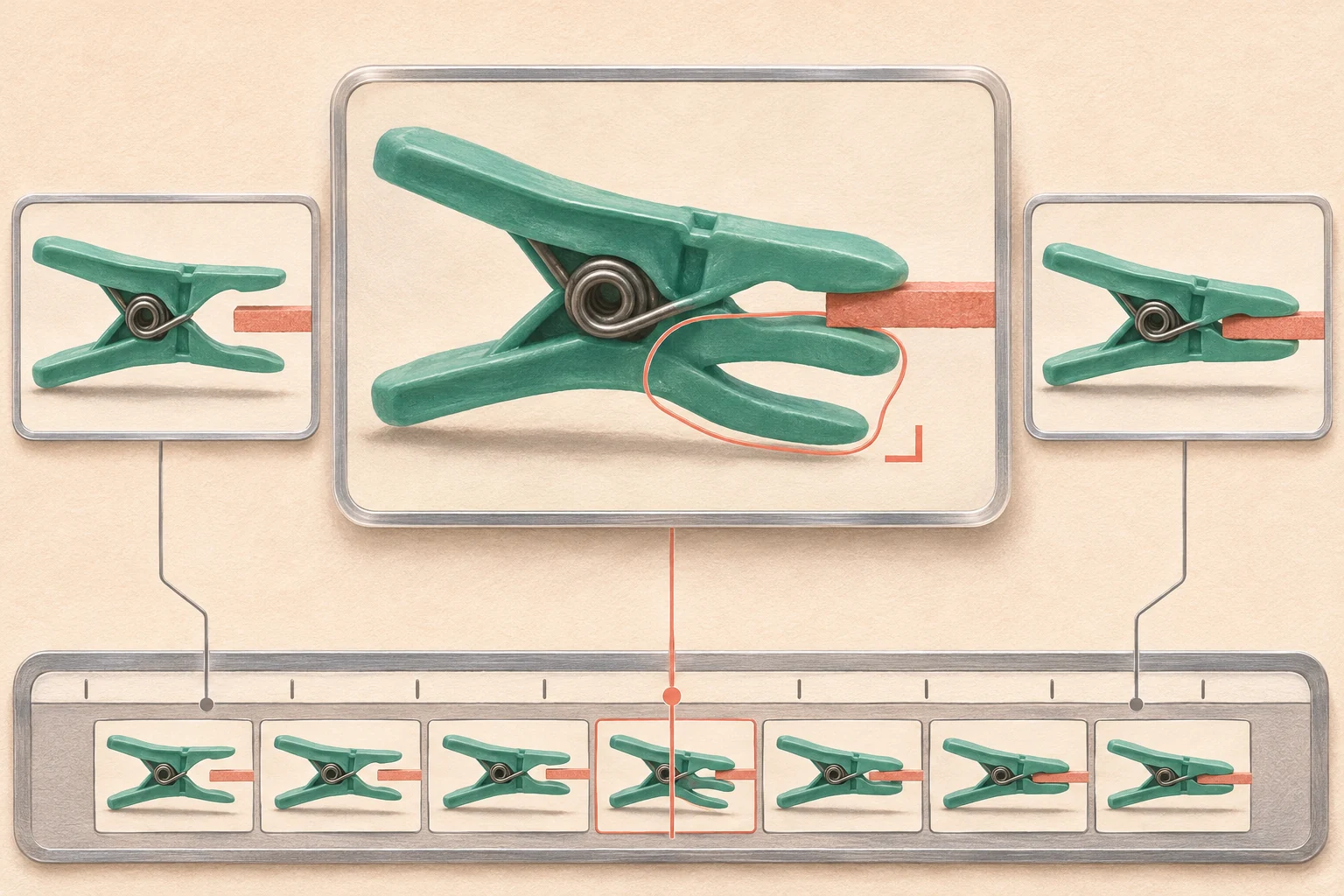
Consider a fictional example: a four-second AI clip shows a green clothespin closing on a coral cardboard strip. The edit needs an eight-second segment. Assume a constant source frame rate of 24 frames per second. The original contains 96 frames, although that does not establish 96 distinct clothespin positions.
At 0.5 speed, the original four seconds occupy eight. An eight-second export at 24 frames per second requires 192 frames. This calculation assumes constant speed, without trimming or transitions. Editors can fill the missing positions in different ways, so check the selected processing mode separately.
If each original frame is simply displayed twice as long, new positions appear no more than 12 times per second. Interpolation can add positions between them. A 24 frames per second label in the finished file’s properties does not reveal how many frames repeat or how convincingly motion has been reconstructed.
Compare two methods on the same section
Choose a short section around the most demanding action. In this example, that is the clothespin’s jaws closing on the cardboard. Include a little time before and after contact to show the approach and stop. Checking only a quiet opening reveals little about whether the slowed contact is usable.
Prepare two versions with identical speed and output frame rate. For the first, repeat source frames if the editor offers an explicit setting. For the second, enable interpolation. Setting names vary: read the function description, since blending adjacent images and calculating a new position produce different results.
Keep resolution, cropping, and other effects identical during comparison. Record both versions’ settings. Watch them first at the intended playback speed and publication size. Then examine individual frames: this inspection should explain problems noticed during playback, while ordinary viewing remains part of the assessment.
Inspect images between source frames
Find two consecutive source frames around a questionable moment and compare them with the slowed version. At 0.5 speed, a source time of 1.5 seconds corresponds to approximately 3 seconds in the result, provided the beginning was not trimmed. This mapping helps locate the same action in files of different lengths.
In the example, follow the gap between the jaws, the cardboard outline, and the metal spring. An intermediate image should introduce neither an extra jaw nor a bridge across the open gap. Check whether the cardboard appears transparent just before being gripped. These are proposed inspection criteria, not findings from an actual test.
The FILM paper acknowledges possible unnatural deformations when motion between images is extreme. Our practical inference is to pay particular attention to large displacements and abrupt changes in which details are visible. Record errors already visible in source frames separately from defects found only after processing.
Check the export and soundtrack
After making a provisional selection, export the entire clip and reopen the resulting file. Compare its duration with the requirement, watch the beginning and end, and revisit the problematic section. Assess the file viewers will receive: the editor’s preview alone provides insufficient evidence for acceptance.
Check audio separately. Microsoft’s Clipchamp instructions state that changing video speed also affects its embedded audio track; separated tracks can be edited independently. Establish how your chosen editor actually behaves and listen to the export, especially when the clip contains speech or a short click.
For the clothespin example, decide beforehand whether the click should retain its ordinary sound or slow down with the picture. If edited separately, check its position against visible contact after changing duration. Also compare music, narration, and captions with the new timeline when they are present.
Choose according to the clip’s purpose
For this example, an advance acceptance rule could require clear contact, stable jaw shapes, intact cardboard, and no noticeable motion jumps during ordinary playback. If interpolation violates a mandatory condition, smoothness cannot compensate. The version using repeated frames may also fail because of judder.
If both versions are unsatisfactory, try less slowdown. For example, 0.75 speed extends four seconds to approximately 5.33 seconds. If the edit permits that duration, it becomes another candidate for review. Alternatively, preserve the action’s original pace and reconsider the duration of surrounding editing segments.
Record the chosen mode, speed, output frame rate, and observations about questionable moments. Interpolation proposes intermediate motion without confirming what happened between source images. Checking the action’s meaning is especially important in instructions about a mechanism. Repeat acceptance checks after another speed change or a different export.