Define the destination you are checking
A QR code on an attractive AI poster needs to be accepted as a working link. Recognizable corner squares do not reveal the address encoded inside. Publication requires two separate checks: a phone reads the finished design, and the visitor reaches the intended page. Judging the image by appearance cannot replace these checks.
Before designing, create a verification record. Note the approved full address, expected page and language, intended audience, and medium: paper, a screen, or an image in a message. Include the verification date. These fields help distinguish a scanning error from a correctly decoded but unsuitable address.
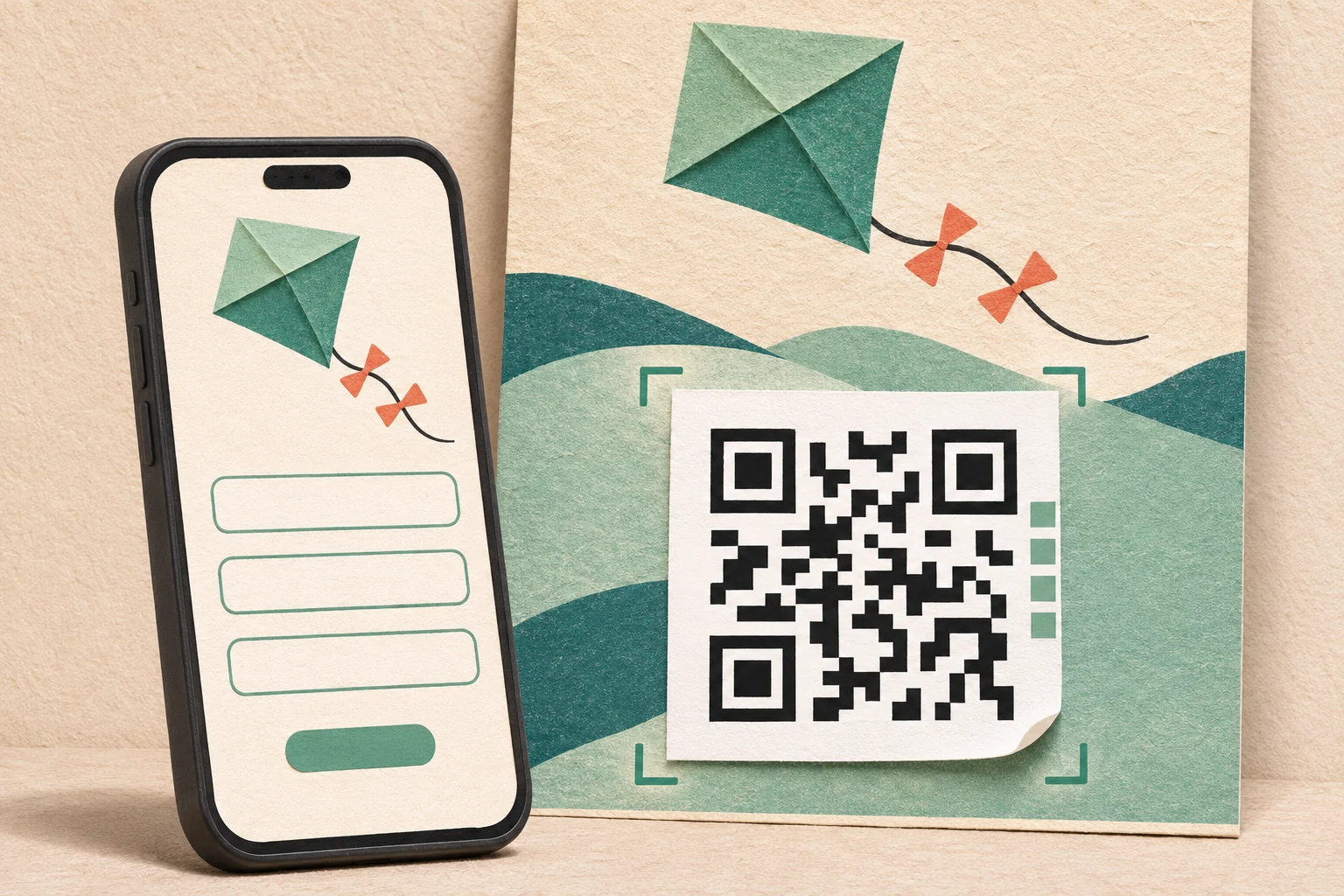
Fictional example: an organizer of a paper kite assembly workshop is preparing a printed poster and a messaging card. Both must lead to the public registration form for that particular workshop. AI can help prepare the illustration; the organizer adds the QR code as a separate object and checks it independently of the artwork.
Prepare the address and a separate QR file
First, open the intended page and inspect its address. Confirm that it is the visitor page rather than the form editor or a preview in the organizer’s account. Avoid a participant’s personal link on a public poster. If the link redirects, separately approve the initial address and the final page.
Desktop Chrome is one option for creating a separate QR file. Google’s official help describes creating a code for the open page through Cast, save, and share, followed by Create QR code; the image can be downloaded. Menu labels in a localized interface may differ from the English labels.
Check the downloaded QR file before placing it in the design. Use a scanner that lets you inspect or copy the full decoded address, and compare it with the approved address. Then open the link and check the final page. Keep the original QR file as a reference if a problem appears after layout.
Protect the code during design
Use the downloaded AI image as a background and place the QR file above it in an external editor. Keep the code as a separate object until final export. This lets you change the kite illustration, heading position, and poster color while preserving the verified link asset.
Microsoft’s QR detection guidance describes an empty margin four modules wide on every side. A module is one small square in the grid. Keep this margin clear. For our design, we will choose a dark code on a solid white panel separated from the illustration.
Do not stretch the square into a rectangle, cover its pattern with decoration, or add blur. If the background needs another AI edit, restore the original QR panel afterward. Similarity between a redrawn pattern and the original should not be an acceptance criterion: check actual decoding.
Example: calculate what survives resizing
Continue the fictional example. Suppose the verified code has 29 modules along each side. With four pixels per module, the pattern itself occupies 116 pixels. Adding a 16-pixel empty margin on each side makes the complete panel 148 pixels wide. This is an illustrative calculation, not a test result.
The organizer places this panel in a card 1,200 pixels wide. If the whole card is reduced to 360 pixels, the panel becomes 44.4 pixels wide and each module becomes 1.2 pixels wide. These figures describe the scale; they alone establish neither successful decoding nor camera failure.
Prepare a second layout with a larger panel and compare both versions in their final medium. If the first only scans after someone enlarges the image with their fingers, it fails the normal viewing check. Allocate more space to the code or rearrange the design. A sharp large original cannot replace checking the reduced version.
Test the file under publication conditions
For a digital card, test the image delivered after uploading to the chosen channel, at its normal display size. For print, produce an actual-size proof on the intended material. Keep the open editor, enlarged crop, and original QR file for diagnosis: they do not represent the finished publication.
Google’s Pixel help describes scanning with the camera without taking a photograph: the entire code should fit in the frame. For problems, Google advises holding the phone steady, providing good lighting, and avoiding glare. Record these conditions so that repeat checks take place in comparable surroundings.
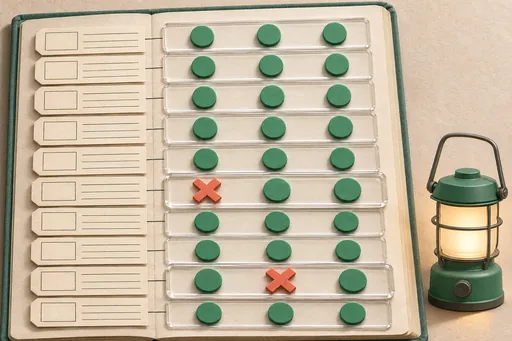
For our example, define this rule beforehand: two phones, three fresh camera acquisitions each, and recognition within five seconds on every attempt. This is an editorial condition, not a universal standard. Record the device, medium, distance, lighting, time, and decoded address. Keep all six attempts; do not replace failures with successes. Record page loading time separately.
Check the page and retain an alternative route
After decoding, check whether the destination fulfills its purpose. In our example, the workshop, language, and registration form must match. Open the page without the organizer’s account and reach the form without submitting it. A correctly decoded address leading to an old event or private preview means the poster is not ready.
Add an understandable address for manual entry on the printed poster. In a digital publication, place a regular link to the same page beside the image. Its label should explain the action, such as “Workshop registration.” This route helps someone viewing the card on their only available phone.
Six successful attempts establish performance only for the tested devices and conditions. They do not guarantee every camera, another print size, or future page availability. Repeat the checks after changing the address, export, or medium; reopen the page before another print run. Keep the approved address, original QR file, final design, and test record together as the verifiable deliverable.